
Step 5: Testing in containers
Published:
| ◀ Back to Checklist | Back to Details | ◀ Previous: Step 4 | Next: Finalize README ▶ |
After you have made all the changes, you should test your code. To make this simple, we have set up a public website that hides the complexity of running containers from you. You only need to choose the software, the system will run the properly configured code automatically.
Using the SIVACOR website
We have developed the SIVACOR service, which allows you to run your code using authorized containers without the need to install software on your own computer, producing a Trusted Research Object (TRO).
If successful, your last run on SIVACOR will be the package you submit to the Data Editor!
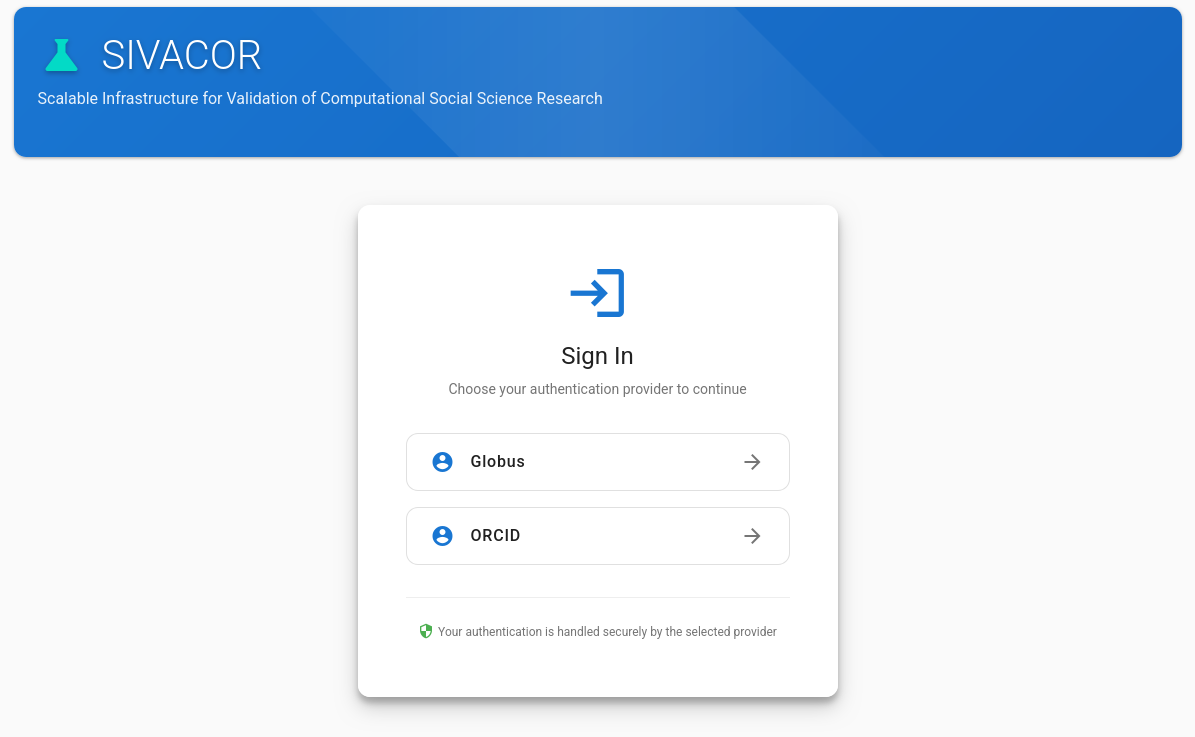
For more information on how to use SIVACOR, see https://docs.sivacor.org/. Once you have successfully run your code on SIVACOR, you can proceed directly to Submitting. A TRO does not need to be re-run by the Data Editor.
Authorized containers
SIVACOR uses a curated list of containers, chosen because they are reliably available, and achieve the desired transparency. You can inspect the most current list at https://docs.sivacor.org/docs/images/. At the moment, Stata, R, and MATLAB (with Dynare) are supported.
If you know of a different container that we should add to this list, please let us know. The AEA Data Editor’s Github profile has a few other containers that have worked. However, we do not allow for arbitrary (user-created) containers on SIVACOR, though if you think that they are useful for your replication package, please reach out.
SIVACOR allows for multi-step software flows, where a small number of single-software containers are run in sequence, with the output of one container being used as the input to the next. See SIVACOR documentation.
A note about multi-software workflows
We are not currently attempting to generalize this to all multi-software replication packages. Building multi-software containers definitely is possible with some effort.
Testing using Docker locally (advanced)
If SIVACOR does not work for you, you can either attempt to run it in Docker on your own computer, or skip this step entirely and revert back to the standard (manual) verification process. Installing and running Docker on your computer is straightforward (undergraduate students in the AEA Data Editor team have done this in under half an hour), but may not meet everybody’s needs, or your institution’s IT policies.
⚠️❗ IMPORTANT: If you do not have Docker installed on your computer, do not have the rights to install Docker on your computer, or do not have access otherwise to Docker, please do not attempt this, and skip straight to the alternative approach.
⚠️❗ IMPORTANT: Do not provide us with a custom container that is not on the above list. Transparency requires that the container be built, using a
Dockerfileorapptainer.deffile, from publicly available sources. While we will happily use your container, it must be built from one of the above sources, or well-known “standard” sources, such as “Docker Official Images” in the Dockerhublibraryspace (e.g., https://hub.docker.com/_/python).
Steps
- Install the software necessary for running containers.
- For Windows, install Docker Desktop for Windows.
- For Mac, install Docker Desktop for Mac or OrbStack.
- For Linux, install Docker engine, Podman, or use Apptainer. These can all also be installed on Windows under Windows Subsystem for Linux (WSL).
- All example commands below are from a Bash or Zsh terminal, which are standard on Mac and Linux, as well as on Windows if using WSL. If you do not have WSL on Windows and are using the Powershell, the same principles apply, but the syntax may be different.
When code has been adjusted as in Steps 1-4, no complex adjustment of containers is necessary.
- Run the container, mounting your project directory into the container. For example, if your project is in
/my/computer/users/me/project, you would use a command such as this (example for Stata):
Preliminaries
(may need some adjustment, depending on your license)
VERSION=18_5
TAG=2025-02-26
MYHUBID=dataeditors
MYIMG=stata${VERSION}
CONTAINER=$MYHUBID/${MYIMG}-${TYPE}:${TAG}
TYPE=mp
STATALIC=/path/to/your/stata/stata.lic
Explanations:
VERSION: This is the Stata version. StataNow is referenced with a_5suffix, otherwise, this corresponds to your (major) Stata version number.TAG: This is the date the container was built, inYYYY-MM-DDformat. Recent Stata containers do not (on purpose) have alatesttag, but older ones (that are no longer maintained) do, and can replace the date withlatest.CONTAINER: is the fully qualified name of the container to be used. It is built from various components. For Stata images, these are maintained bydataeditorson Dockerhub. All available Stata containers and tags can be viewed on https://hub.docker.com/u/dataeditors. The precise way to call the container may depend on the version. For instance, for versions prior to18, the-${TYPE}suffix is not used.STATALIC: Is the path (in the notation used by the terminal you are using) to your Stata license filestata.lic. You need to have a valid Stata license file for the version of Stata you are using.
If you have only an older license, or a non-MP license, you may need to replace
VERSION,TAG, andTYPEaccordingly. For instance, if you have a Stata 16 SE license, you would setVERSION=16,TAG=2023-06-13, andTYPE=se, and remove-${TYPE}from theCONTAINERdefinition.
Test the container
docker run -it --rm \
  --volume ${STATALIC}:/usr/local/stata/stata.lic \
  --entrypoint stata-${TYPE} \
  ${CONTAINER}
You should see the usual Stata prompt. Type exit to leave Stata.
Run the container
docker run -it --rm \
  --volume ${STATALIC}:/usr/local/stata/stata.lic \
  --volume $(pwd):/project \
  --workdir /project \
  --entrypoint stata-${TYPE} \
  ${CONTAINER} -b main.do
if using a Scenario B setup. If using a Scenario A setup, use
docker run -it --rm \
  --volume ${STATALIC}:/usr/local/stata/stata.lic \
  --volume $(pwd):/project \
  --workdir /project/code \
  --entrypoint stata-${TYPE} \
  ${CONTAINER} -b main.do
Fallback: Run on a different computer
If you do not have, or cannot, install Docker, and you cannot use SIVACOR, use this alternative approach to test your code:
- Download your entire replication package from the draft openICPSR deposit, onto a different computer where you have not previously run the code.
- Run the code from that new location.
- For Stata, close all Stata windows, and then double-click on the
main.dofile. This should generate amain.logfile in the same directory asmain.do.- For R, from a terminal or the RStudio Terminal tab, type
R CMD BATCH main.R, or if usingrenv,R --no-save --no-restore -f main.R > main.Rout.1 This should generate amain.Routfile in the same directory asmain.R.
- For R, from a terminal or the RStudio Terminal tab, type
- For Stata, close all Stata windows, and then double-click on the
We note that in our experience, this approach is much less reliable.
Success
If your code does run into problems, the generated main.log or main.Rout should have clues as to what went wrong. You should be able to fix these issues, and re-run the code in the container, until it runs without error.
If your code runs without error, and produces all expected output files, you are done!
Problems?
If you run into problems in Step 5, no worries, simply submit all the files as modified in Steps 1-4, along with the completed checklist, and we will handle the remaining issues.
-
In PowerShell, you can use
R --no-save --no-restore -f main.R | Out-File -Encoding UTF8 main.Rout. ↩